Online
Enrollment
(ERP)
Access Requirements
- Internet connection (desktop or mobile)
- Updated Internet browser
- PWU ERP Student account – with the following format:
USERNAME: <student ID number> OR <application number>
PASSWORD: <birth date in YYYYMMDD format>
Example: Student ID # 2019T0000 | Birth date: 20200120
Online Application For New Students
-
- Applicant must accomplish the PWU Online Application College and Graduate Studies | JASMS Elementary & High School
- Qualified applicants will receive a message on next steps to do, including the application number in the email they had provided.
- The Registrar will change the issued application number to student ID number upon completion of enrollment of applicant. Signed official assessment form and payment receipt serves as proof of enrollment.
First Part:
Enlistment of Subjects and Assessment
- Log in to ERP Student Portal [CLICK HERE]
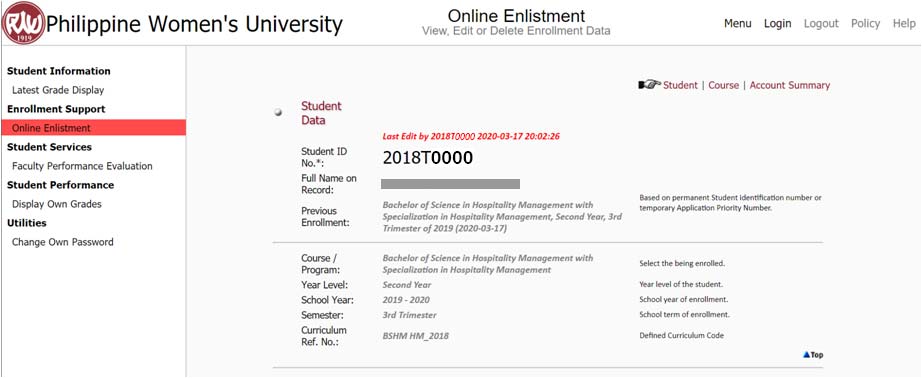
- Click Online Enlistment tab under Enrollment Support label (image 1).
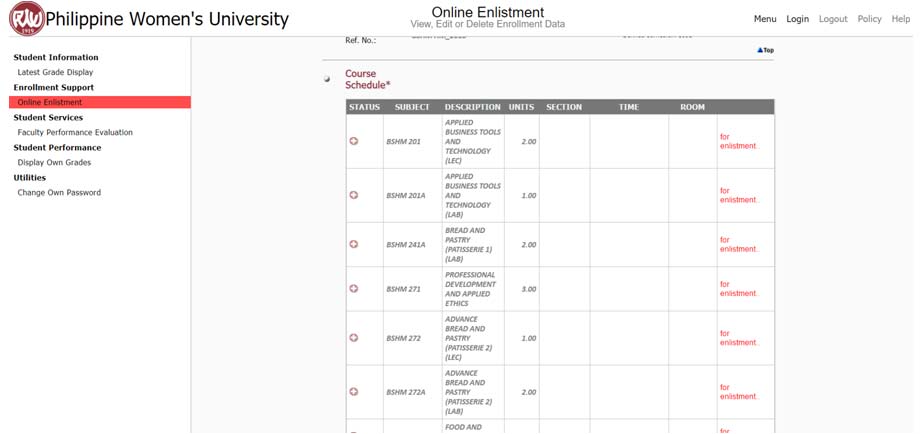
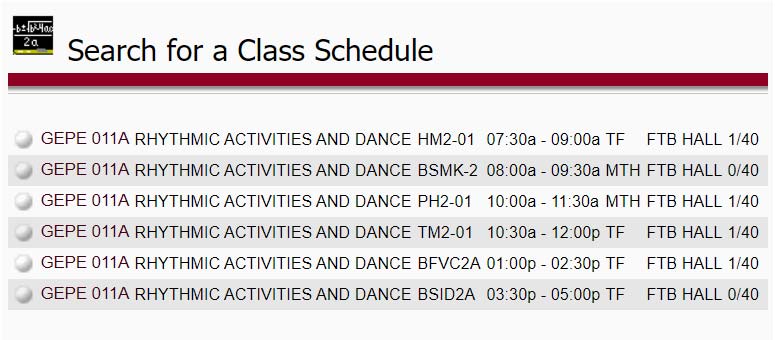
- Scroll down and select offered subject. Click the Plus button
 and pop-up list of schedules will appear. (image 2)
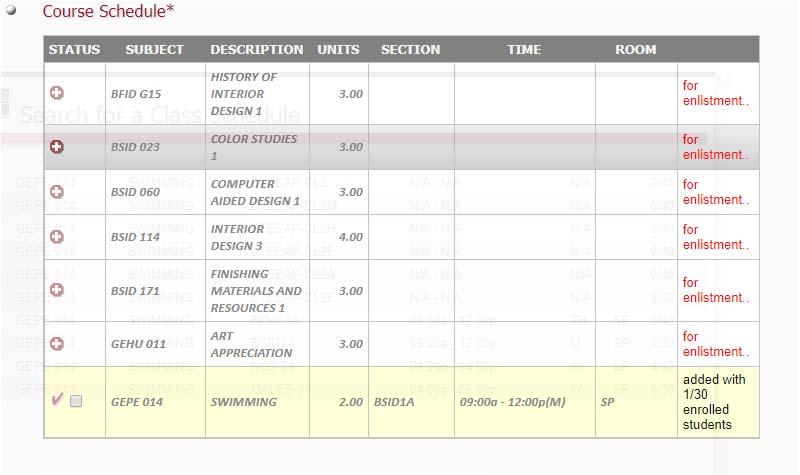
- Select the desired schedule by clicking the course code.(image 3)
- The subject will be added to your load (indicated by ✔ mark). (image 4)
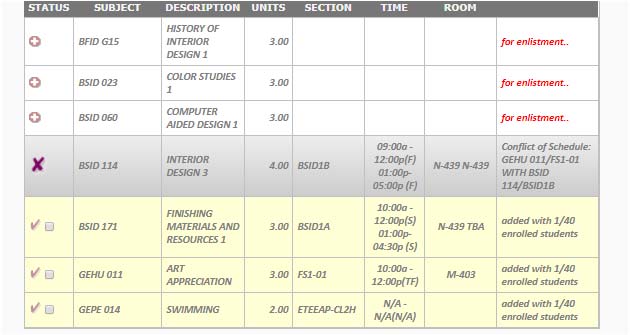
If conflict in schedule arise, ✗ mark will appear (image 5). You need to change your selected schedule in order for it to be added.
- Once all of the desired subjects and schedule have been added, Choose a payment mode then click Compute for Account/s button. (image 6)
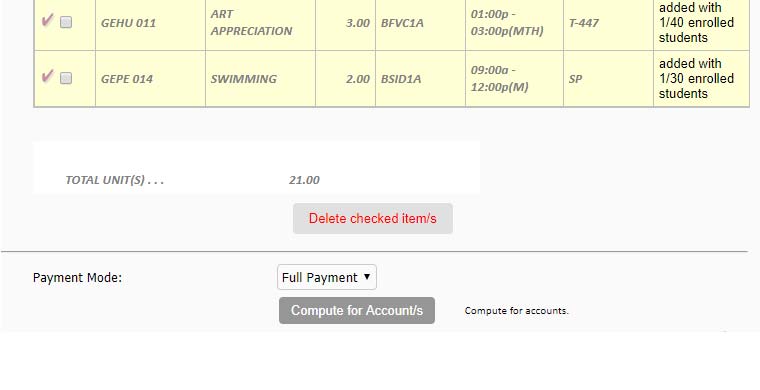
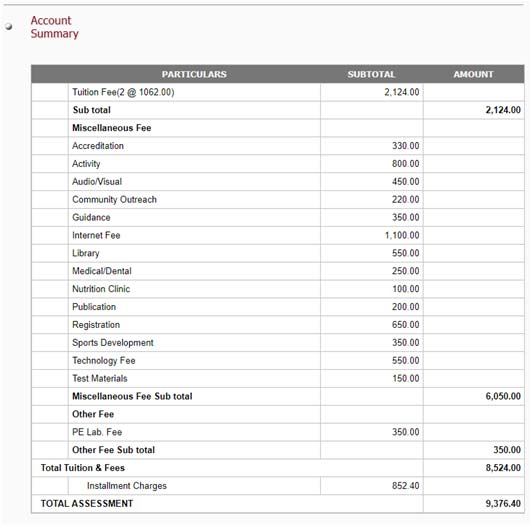
Assessment will be shown after under Account Summary. (as shown below)
Second Part: Payment
Student will choose one option only to pay.
OPTION 1: Online Payment
- Before proceeding for online payment, kindly pick Payment Mode first (you may choose Cash Payment or Installment),then click
Compute for Account/s button. (image 8)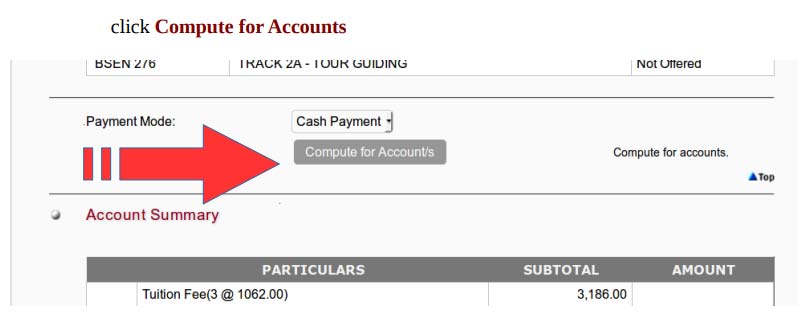
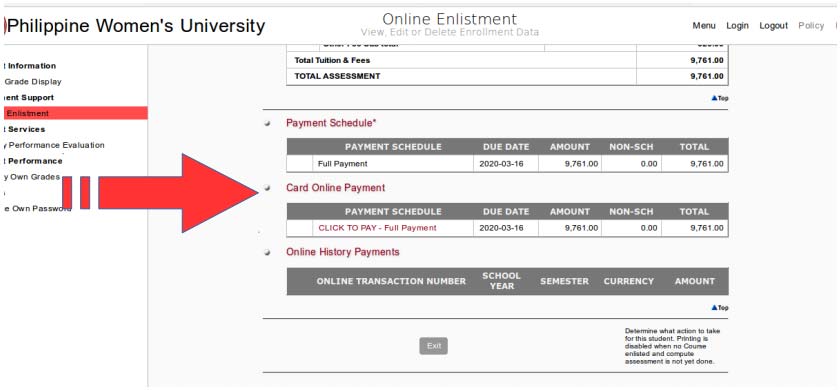
- Scroll down the page, locate Card Online Payment and select CLICK TO PAY hypertext inside the PAYMENT SCHEDULE column. (image 9)
- You will be directed to the Online Payment Center menu. Select the payment transaction, then click the Proceed to Payment button. A pop-up window will appear, click the Proceed button to continue. (image 10)

- You will be redirected to PayMaya’s secure site. Select from QR and e-wallet options – either scan the QR code or use your Maya account, then click the Login to Maya button to proceed with the payment. You may also pay via debit/credit card by entering your card details and clicking the Continue and Pay button. (image 11)

- You will be notified upon successful payment. You will also receive an email notification for the successful or failed Maya payment transactions.

- You will receive an email with the receipt of payment and your OFFICIAL STUDENT NUMBER from the Finance Office.
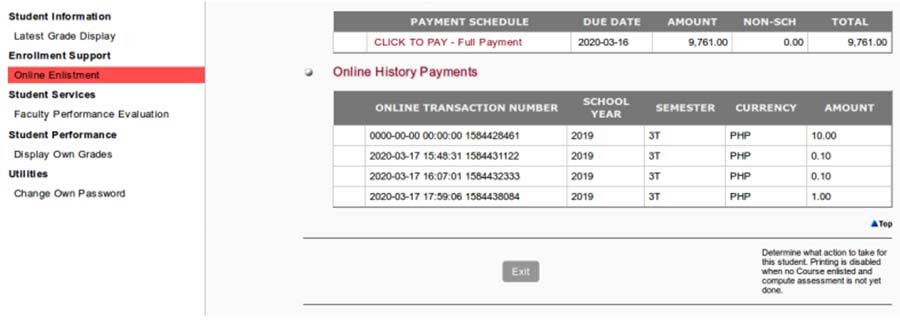
Payment information will be recorded in the Online History Payments table. (as shown below)
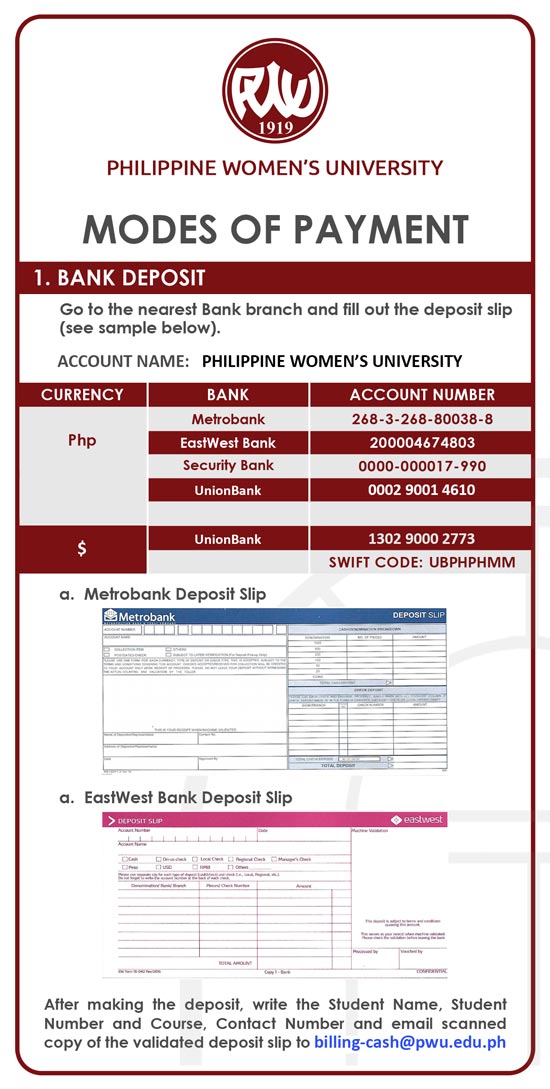
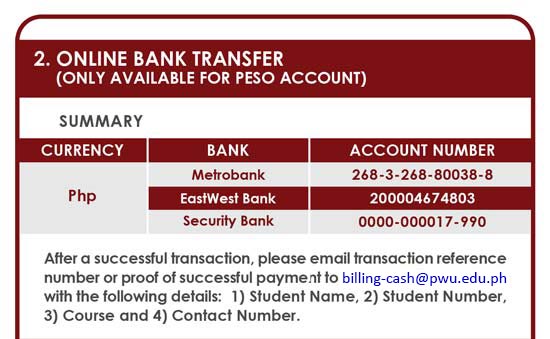
OPTION 2: Via Bank Deposit