
PWU-CDCEC Admissions
Academic Calendar
Dates |
Event |
|---|---|
| JAN 6-11, 2026 | Enrollment of College/SHS students |
| JAN 20, 2026 | Start of Classes for SHS |
| JAN 26, 2026 | Start of 2nd Semester for College |
| FEB 20-21, 2026 | SHS Periodic Exam / Prelims |
| FEB 26-28, 2026 | Foundation Day |
| MAR 25-26, 2026 | SHS Periodic Exam / Midterm |
| APR 22-23, 2026 | SHS Periodic Exam / Prefinals |
| MAY 22-23, 2026 | SHS Periodic Exam / Finals |
| MAY 24, 2026 | Completion / Clearance Deliberation |
| JUN 27, 2026 | SHS and College Graduation / Recognition |
Dates |
Event |
|---|---|
| JAN 5, 2026 | Classes Resume for College |
| JAN 21-23, 2026 | 3rd Quarter Examination for SHS |
| JAN 23, 2026 | End of Academic Quarter 3 for SHS |
| JAN 24, 2026 | Submission of 3rd Quarter Grades |
| JAN 26, 2026 | Start of Academic Quarter 4 |
| JAN 21-27, 2026 | Midterm Examination for College |
| FEB 18-24, 2026 | Pre-Final Examination for College |
| MAR 3, 2026 | Posting of Final List of Graduates for SHS |
| MAR 5, 2026 | Submission of Pre-Final Grades for College Deliberation of Grading Students for College |
| MAR 11-13, 2026 | Grade 12 4th Quarter Examination |
| MAR 18-24, 2026 | Finals Examination for College (Non-Graduating) |
| MAR 28, 2026 | 9th Recognition Ceremony |
| MAR 30, 2026 | Submission of Final Grades for College (Non-Graduating) |
| APR 1, 2026 | End of Classes for College |
| APR 17, 2026 | 26th Baccalaureate Mass |
| APR 18, 2026 | 9th Commencement Exercises |
Dates |
Event |
|---|---|
| JAN 5, 2026 | Resumption of Classes for SHS students |
| JAN 12-17, 2026 | Enrollment for 2nd Semester for College |
| FEB 9-11, 2026 | 3rd Quarter Examination for SHS |
| APR 9-11, 2026 | 4th Quarter Examination for SHS |
| MAY 15, 2026 | Recognition Day |
| MAY 21, 2026 | 9th Commencement Exercises |
| MAY 25, 2026 | Final Examination for Non-Graduating College |
Dates |
Event |
|---|---|
| JAN 5, 2026 | Enrollment of College/SHS students |
| JAN 21, 2026 | Start of Classes for College and SHS |
| FEB 18-19, 2026 | Prelims – Regular SHS Periodic Exam |
| MAR 24-25, 2026 | Midterm Exam SHS Quarterly Exam |
| APR 20-21, 2026 | Prefinal Exam |
| MAY 25-26, 2026 | Final Exam |
| MAY 29, 2026 | End of SHS Classes |
| JUN 24, 2026 | Graduation (Tentative) |
Admissions Process
At PWU CDCEC, we are committed to providing a clear, guided, and student-focused enrollment experience. Please follow the steps below to begin your application through our official portal.
- Visit the Official Enrollment Portal
Access the PWU CDCEC Enrollment Portal. Select the PWU CDCEC branch where you intend to enroll. After selecting the branch, proceed to create your applicant profile using an active email address. - Confirm your Branch and Academic Level
Choose your branch. Additionally, make sure you selected the SHS level option. - Prepare Your Requirements
Have clear scanned copies of the following and upload it accordingly:- ● F-138 (Report Card) or latest grades
- ● PSA Birth Certificate
- ● Good Moral Certificate
- ● Two 1×1 ID photos
- ● ESC Certificate (if applicable)
- ● Grade 10 Completion Certificate/Diploma
- Submit Your Application
Review and submit your application. You will receive an acknowledgment email. - Finalize Your Application
Receive your acceptance letter once your application is approved. Afterward, proceed with your onsite or online payment to secure your slot.
- Visit the Official Enrollment Portal
Access the PWU CDCEC Enrollment Portal and first select the PWU CDCEC branch where you intend to enroll. After selecting the branch, proceed to create your applicant profile using an active email address. - Confirm your Branch and Academic Level
Choose your branch. Additionally, make sure you selected the College/Undergrad/Freshman level option. - Prepare Your Requirements
Have clear scanned copies of the following and upload it accordingly:- ● High School Card Form 138 (original and photocopy)
- ● Letter of Recommendation / Certificate of Good Moral Character from High School Principal / Guidance Counselor (original and photocopy)
- ● PSA certified birth certificate (1 photocopy)
- ● Marriage Certificate (for married female students – 1 photocopy)
- ● Two (2) colored 1.5” x 1.5” ID pictures
- Submit Your Application
After submitting your application, receive your acknowledgment letter once your application is approved. Afterwards, proceed with your onsite or online payment to secure your slot.- a. Go to the branch-designated student portals.
- b. Sign in using the credentials sent to your email.Username: <your application number>
Password: <your birth date in YYYYMMDD format> - c. See the status of your application in the student portal within 2-3 business days during the enrollment period. Receive an acceptance letter upon approval of your application. Then, proceed with online enlistment, enrollment, and onsite payment.
- d. You will receive a separate email to confirm the receipt of your payment.
- Visit the Official Enrollment Portal
Access the PWU CDCEC Enrollment Portal and first select the PWU CDCEC branch where you intend to enroll. After selecting the branch, proceed to create your applicant profile using an active email address. - Confirm your Branch and Academic Level
Choose your branch. Additionally, make sure you selected the specific TESDA program option. - Prepare Your Requirements
Have clear scanned copies of the following and upload it accordingly:- ● Original and photocopy of Transcript of Records (TOR) with Documentary Stamp (Copy for: PWU–CDCEC Branch) or Form 138 (for Senior High School graduates)
- ● Original and photocopy of Honorable Dismissal or Transfer Credential with Documentary Stamp
- ● Original and photocopy of Good Moral Certificate with Documentary Stamp
- ● Photocopy of PSA Birth Certificate
- ● Photocopy of PSA Marriage Certificate (if applicable)
- ● Two (2) colored 1.5” x 1.5” ID photo with red background
- ● One (1) long expanded envelope (any color)
- ● Physically and mentally fit
- ● Can perform basic mathematical computation
- Submit Your Application
After submitting your application, receive your acknowledgment letter once your application is approved. Afterwards, proceed with your onsite or online payment to secure your slot.- a. Go to the branch-designated student portals.
- b. Sign in using the credentials sent to your email.Username: <your application number>
Password: <your birth date in YYYYMMDD format> - c. See the status of your application in the student portal within 2-3 business days during the enrollment period. Receive an acceptance letter upon approval of your application. Then, proceed with online enlistment, enrollment, and onsite payment.
- d. You will receive a separate email to confirm the receipt of your payment.
Online Enrollment (Quick Campus)
Access Requirements
- Internet connection (desktop or mobile)
- Updated Internet browser
- PWU ERP Student account – with the following format:USERNAME: <student ID number> OR <application number>
PASSWORD: <birth date in YYYYMMDD format>Example: Student ID No. 2019T0000 | Birth date: 20200120
Online Application For New Students
- Applicants must accomplish the PWU Online Application PWU-CDCEC Enrollment Portal.
- Qualified applicants will receive a message on next steps to do, including the application number in the email they had provided.
- The Registrar will change the issued application number to student ID number upon completion of enrollment of applicant. Signed official assessment form and payment receipt serves as proof of enrollment
First Part: Enlistment of Subjects and Assessment
- Log in to the branch-designated student portals.
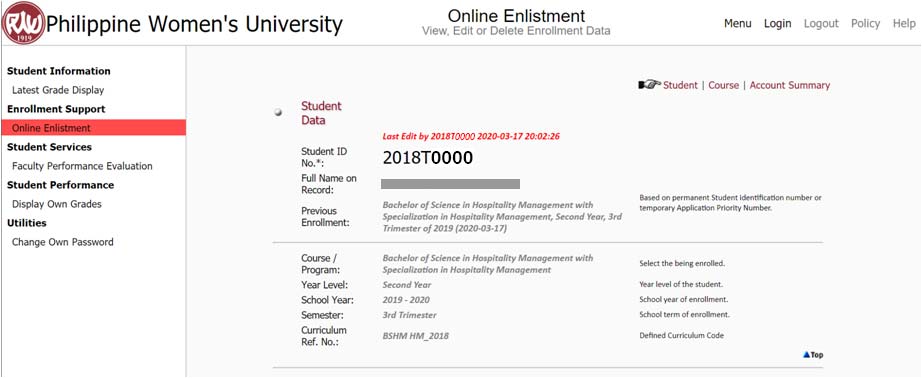
- Click the Online Enlistment tab under Enrollment Support label (image 1).
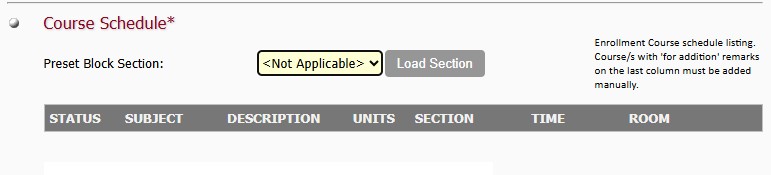
- To enlist a block section, select from the Preset Block Section, then click the Load Section button (image 2).
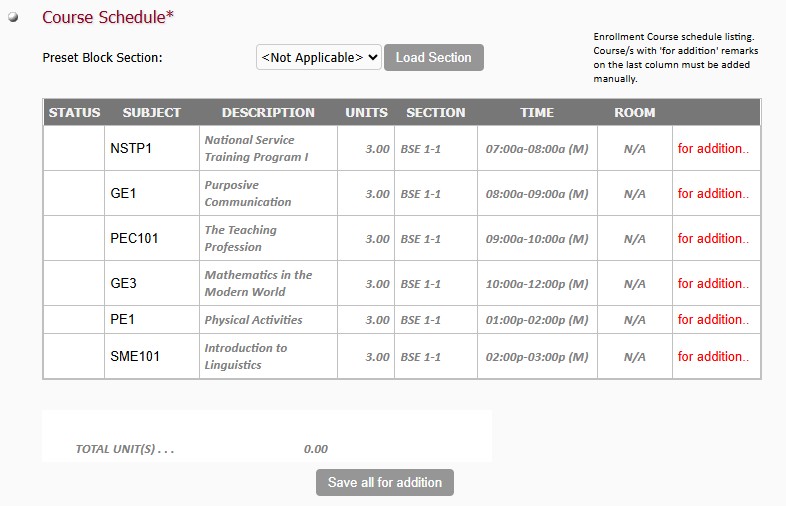
Then click the Save all for addition button (image 3).
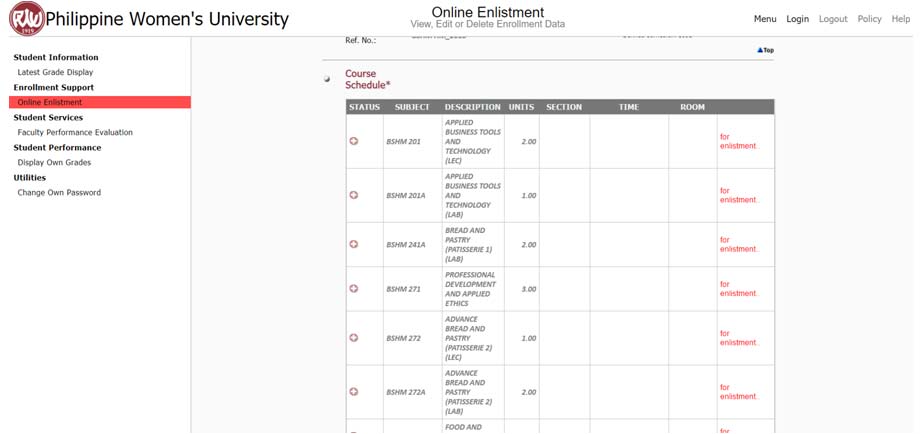
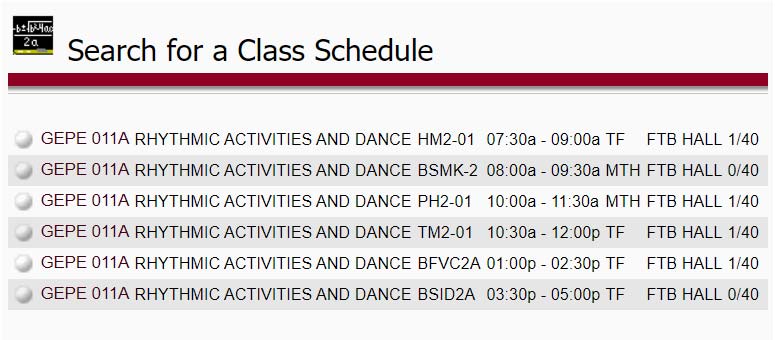
- To enlist selected subjects, scroll down and select offered subject. Click the Plus button
 and pop-up list of schedules will appear. (image 4)
- Select the desired schedule by clicking the course code.(image 5)
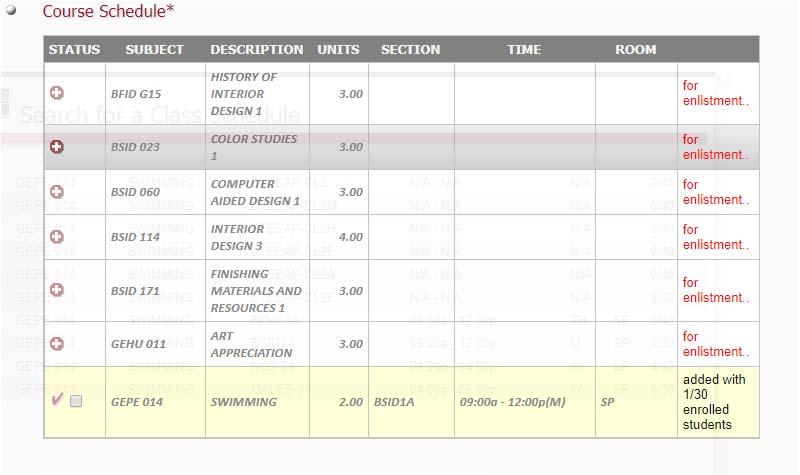
- The subject will be added to your load (indicated by ✔ mark). (image 6)
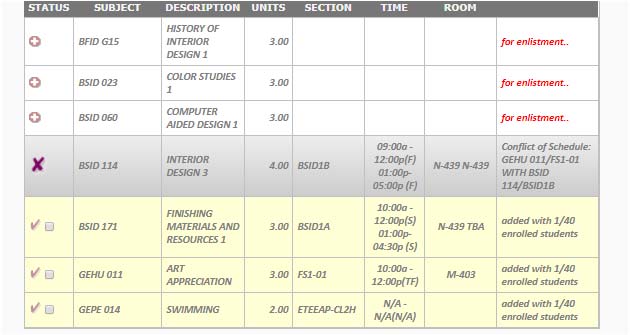
If conflict in schedule arise, ✗ mark will appear (image 7). You need to change your selected schedule in order for it to be added.
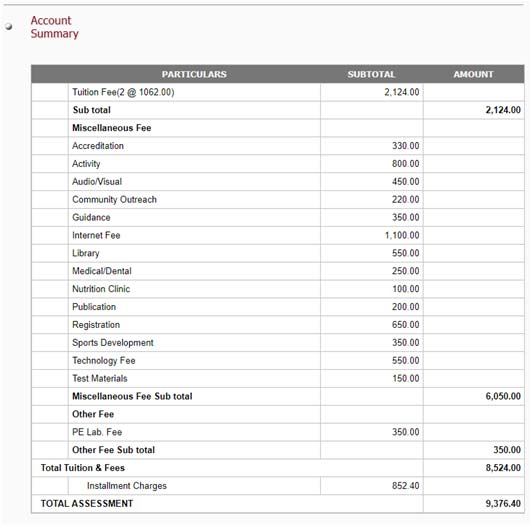
- Once all of the desired subjects and schedule have been added, Choose a payment mode then click Compute for Account/s button. (image 8)
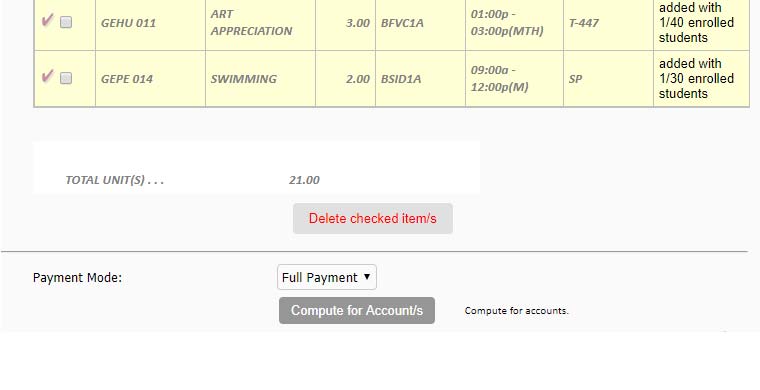
Assessment will be shown after under Account Summary. (as shown below)
Second Part: Payment
Student will choose one option only to pay.
OPTION 1: Cash Payment at the School Counter
OPTION 2: Bank Channels/Online Payment
Each PWU-CDCEC branch maintains its own official bank accounts and payment channels. To ensure accurate posting of your payment and avoid confusion, please contact your enrolled branch directly for the correct bank account details.
The official branch contacts are as follows:
PWU-CDCEC Branch |
Official Branch Contact/s |
|---|---|
| Bataan | [email protected] [email protected] [email protected] |
| Calamba | [email protected] [email protected] |
| Tarlac | [email protected] [email protected] [email protected] |
| Sta. Cruz | [email protected] [email protected] [email protected] |
After Payment
Take a clear photo/screenshot of your validated deposit slip or online transfer receipt.
Verify Your Payment
Email your proof of payment to the official branch contacts together with the following information:
- – Student Name
- – Student Number
- – Course
- – Contact Number